On Windows, you can use the Cisco AnyConnect VPN client to connect to a Cisco VPN.
The alternative on Linux to connect to a Cisco VPN is to install the package "openconnect".
You can do this by opening a console window (Ctrl-Alt-T) and run this command: (Ubuntu)
sudo apt-get install openconnect
To set up the VPN to server MyServer on port 12000, run this command:
sudo openconnect MyServer:12000
The openconnect executable stays running.
Before you can use the remote network, you probably need to add an IP route. When the remote network is 192.168.2.0 with network mask 255.255.255.0, you can execute this command (in a new terminal window):
sudo route add -net 192.168.2.0 netmask 255.255.255.0 tun0
To disconnect the VPN connection, press Ctrl-C to terminate openconnect (or kill this process).
quarta-feira, 9 de maio de 2012

Graphically visualize software development with Gource
Gource is a very cool open source visualization tool to get a graphical view on the check-ins of source code in a version control system like GIT, SubVersion, CVS, ...
http://code.google.com/p/gource/
This is a video of the development of FxGqlC 2.x, generated with Gource:
It is very easy to generate a video like this based on your source control system. In the explanation below I used Windows, but all the tools were originally developed for Unix.
Update: have a look at "http://mycomputeradventures.blogspot.be/2012/07/gource-video-of-fxgqlc-22.html" on how to create a gource video on Ubuntu.
http://code.google.com/p/gource/
This is a video of the development of FxGqlC 2.x, generated with Gource:
It is very easy to generate a video like this based on your source control system. In the explanation below I used Windows, but all the tools were originally developed for Unix.
- Local snapshot of the source code
(You can skip this step if you already have a local copy of a source controlled project in GIT, SubVersion,...)
I started from a local snapshot of the last version of the source code. The FxGqlC source code is hosted on GitHub, a public GIT version control repository.
- You first need to install the client of the version control system. In this case: the GIT client the GIT client for Windows.
http://git-scm.com/downloads - Install to the default location "c:\Program Files" (or "c:\program files (x86)" on 64-bit Windows)
- Open the GIT-console (bash) from the start menu, and execute these commands to get a local copy of the source code:
$ mkdir ~/Documents/FxGqlC-Source
$ cd ~/Documents/FxGqlC-Source
$ git clone https://github.com/WimObiwan/FxGqlC.git - Set up Gource and run Gource
- Download gource from http://code.google.com/p/gource/ (I used the Windows build of version 0.38, posted on 2012-04-23)
- Unzip to c:\temp\gource
- Open a command prompt to start Gource:
cd %userprofile%\Documents\FxGqlC-Source\FxGqlC
SET PATH=%PATH%;c:\program files\git\bin
On 64-bit Windows, use instead:
SET PATH=%PATH%;c:\program files (x86)\git\bin
c:\temp\gource\gource.exe - Gource gets the necessary information from the GIT-server, and the video is played.
- To generate the video in WMV format:
- First generate the video in PPM format with this command:
.\Gource\gource.exe -o fxgqlc-gource.ppm - Download ffmpeg: http://www.videohelp.com/tools/ffmpeg
- Unzip to c:\temp
- Cd c:\temp
- ffmpeg.exe -y -r 25 -f image2pipe -vcodec ppm -i fxgqlc-gource.ppm -vcodec wmv1 -r 25 -sameq fxgqlc-gource.wmv
- The video fxgqlc-gource.wmv can be played with a media player or uploaded to YouTube.
- On YouTube, you find several Gource videos of big open-source projects:
Update: have a look at "http://mycomputeradventures.blogspot.be/2012/07/gource-video-of-fxgqlc-22.html" on how to create a gource video on Ubuntu.
terça-feira, 8 de maio de 2012
Manage multiple locations more easily with a new tool for Google Places
Businesses with multiple locations have a big task in front of them when trying to manage their online presence. How can they connect their customers with the locations closest to them? How can they make data changes to a group of their locations all at once? The challenges of managing multiple businesses in the real world can sometimes carry over online.
We’ve heard plenty of feedback about how you want to manage your listings on Google, which is why we’re excited today to announce an upgraded bulk listing management tool for Google Places for business.
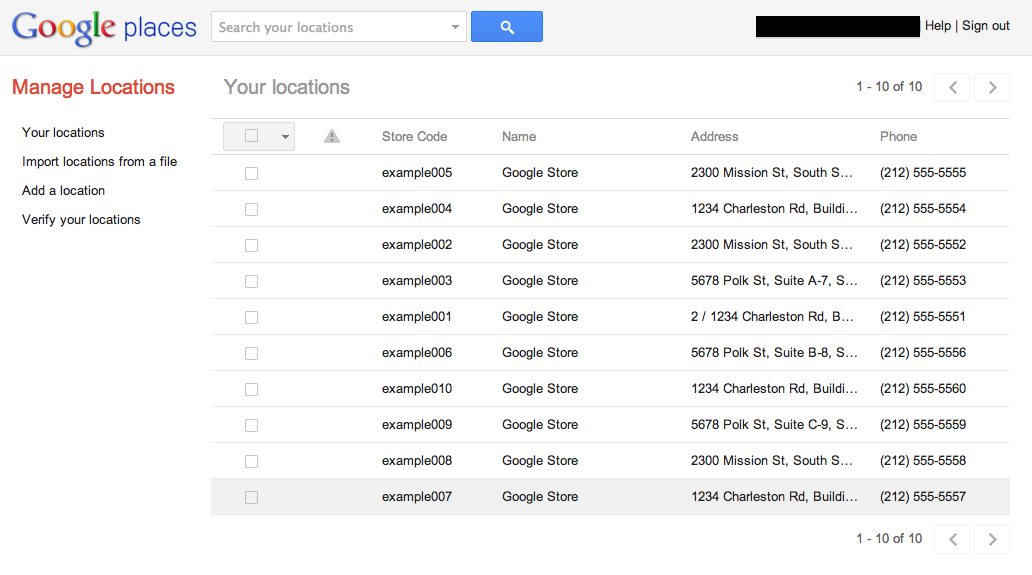 We’ve made many improvements and now enable the following actions:
Already managing verified listings? Here's what's new.
Starting today, you’ll be routed to the new interface whenever you click to upload or edit a data file via the Places dashboard, or by visiting https://places.google.com/manage directly. You’ll still use the Places dashboard to see your listing analytics and to perform PIN verification on single locations. Remember that your updates will still take a few days to appear on Google Maps.
We hope the new tool makes managing your business on Google Places much easier. We look forward to hearing your feedback and seeing your listings up on Google Maps!
Posted by Derek Wetzel, Consumer Experience Specialist, Google Places
We’ve heard plenty of feedback about how you want to manage your listings on Google, which is why we’re excited today to announce an upgraded bulk listing management tool for Google Places for business.
- Edit one or more of your listings’ data at once
- Search through your listings, filtering by specific information or for listings with errors
- Upload new listings using a data file or by adding them individually within the interface
- Tell us how we can improve this new interface by clicking the “Give Feedback” link
New user? Learn how to manage multiple locations.
Already managing verified listings? Here's what's new.
We hope the new tool makes managing your business on Google Places much easier. We look forward to hearing your feedback and seeing your listings up on Google Maps!
Posted by Derek Wetzel, Consumer Experience Specialist, Google Places
GoMo: Mark your calendar to ‘Hangout on Air’ and learn how to build a mobile site in minutes
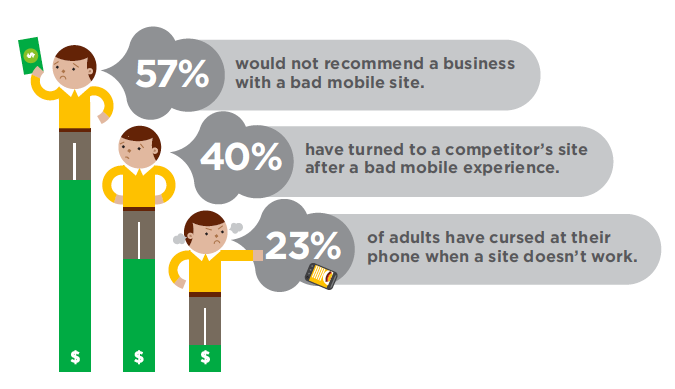
Did you know that 40% of mobile web users reported that they’ve turned to a competitor’s site after a bad mobile experience1? With about half of all Americans now owning a smartphone2, it’s time for businesses to meet user expectations by delivering a mobile experience as good as the desktop experience. In short, it’s time to step up to the plate and build a site optimized for the mobile web.
Google can help. We recently teamed up with DudaMobile to release a free mobile site builder. In three easy steps you’re able to get started with mobile: (1) enter your site’s URL, (2) customize your site and (3) redirect mobile users automatically to the new mobile-friendly version. It’s free and takes just a few minutes to complete!
Join us on Thursday, May 10th at 1pm EST/10am PST and watch as Google showcases how two businesses, Top Mast Resort in Massachusetts and Sava’s Restaurant in Michigan, go mobile and build mobile-friendly sites--live on air.
You’ll see how Top Mast is preparing to take advantage of mobile travel purchase intent - which is five times higher than online travel purchase intent, according to InsightExpress. You’ll also see Sava’s move ahead of 95% of restaurants that do not have mobile-friendly sites, according to a study by Restaurant Science.
Finally, you’ll hear from the CMO of Dudamobile, Dennis Mink; he’ll talk about best practices when using the mobile site builder and walk through important questions to ask yourself when building a mobile-friendly site.
Details on how to tune in:
Posted by Suzanne Mumford, Google Mobile Ads Marketing
Source: (1) Gomez 2011 (2) Nielsen February 2012
Google can help. We recently teamed up with DudaMobile to release a free mobile site builder. In three easy steps you’re able to get started with mobile: (1) enter your site’s URL, (2) customize your site and (3) redirect mobile users automatically to the new mobile-friendly version. It’s free and takes just a few minutes to complete!
Join us on Thursday, May 10th at 1pm EST/10am PST and watch as Google showcases how two businesses, Top Mast Resort in Massachusetts and Sava’s Restaurant in Michigan, go mobile and build mobile-friendly sites--live on air.
You’ll see how Top Mast is preparing to take advantage of mobile travel purchase intent - which is five times higher than online travel purchase intent, according to InsightExpress. You’ll also see Sava’s move ahead of 95% of restaurants that do not have mobile-friendly sites, according to a study by Restaurant Science.
Finally, you’ll hear from the CMO of Dudamobile, Dennis Mink; he’ll talk about best practices when using the mobile site builder and walk through important questions to ask yourself when building a mobile-friendly site.
Details on how to tune in:
- Sign into Google+ on Thursday, May 10 at 1 p.m. EST/10 a.m. PST
- Go to the Think with Google Google+ page
- Look for the stream post and click to enter the live stream
Posted by Suzanne Mumford, Google Mobile Ads Marketing
Source: (1) Gomez 2011 (2) Nielsen February 2012
segunda-feira, 7 de maio de 2012
FxGqlC: Obtain the minutes that have the most log lines
When you have a (big) log file, and you need to know which minutes generated the most lines, you can use a GQL query like this:
FxGqlC> select top 100 left($line, 16), count(1) into [logfile_linespermin.txt] from [logfile.txt] group by left($line, 16) order by 2 desc
In this example, the first 16 characters of every line contain the date and time up till the minutes.
When the date/time is somewhere in the middle of the line, a regular expression can be used:
FxGqlC> select top 100 matchregex($line, '(\d{4}-\d{2}-\d{2} \d{2}\:\d{2})\:\d{2}'), count(1) into [logfile_linespermin.txt] from [logfile.txt] group by matchregex($line, '(\d{4}-\d{2}-\d{2} \d{2}\:\d{2})\:\d{2}') order by 2 desc
And if you need to get the total number of lines per minute, totaled over all the hours, you can run:
FxGqlC> select matchregex($line, '\d{4}-\d{2}-\d{2} \d{2}\:(\d{2})\:\d{2}'), count(1) into [logfile_linespermin.txt] from [logfile.txt] group by matchregex($line, '\d{4}-\d{2}-\d{2} \d{2}\:(\d{2})\:\d{2}') order by 2 desc
More information on: https://sites.google.com/site/fxgqlc
Google+ stories: Meet Best Made Company (again)
Editor’s Note: This is the final installment in a series of posts about small businesses on Google+ and their tips and tricks for managing a great page. Visit our YouTube channel to see all the videos in this series and join the discussion on the Google+ Your Business page. Thanks for following along!
Millions of businesses are now using Google+ to better connect with their customers. Since the launch of Google+ pages last November, we’ve watched as page owners hosted Hangouts with clients, announced news and deals in the Stream, and shared exclusive photos and videos. We’ve loved all the creativity out there and hope that this series has given you a few new tips for engaging with your customers on Google.
Over the last several months, we introduced you to some cool small businesses who had recently joined Google+, both here on the SMB Blog and on the Google+ Your Business page. The first company we introduced back in February was Best Made Company, a group of outdoor enthusiasts that specializes in designing and handcrafting wilderness supplies. We wanted to take one more look at their story as a final farewell to this series. Watch on as they create a magic moment for a very special pair of customers.
Want to learn more? Visit the Google+ Your Business site. And remember to visit all of our special guests in this small business series below at their +Pages and say hello!
Posted by Evelyn Lee, Google+ Pages Associate Product Marketing Manager
Millions of businesses are now using Google+ to better connect with their customers. Since the launch of Google+ pages last November, we’ve watched as page owners hosted Hangouts with clients, announced news and deals in the Stream, and shared exclusive photos and videos. We’ve loved all the creativity out there and hope that this series has given you a few new tips for engaging with your customers on Google.
Over the last several months, we introduced you to some cool small businesses who had recently joined Google+, both here on the SMB Blog and on the Google+ Your Business page. The first company we introduced back in February was Best Made Company, a group of outdoor enthusiasts that specializes in designing and handcrafting wilderness supplies. We wanted to take one more look at their story as a final farewell to this series. Watch on as they create a magic moment for a very special pair of customers.
- Best Made Company
- North Bowl
- King Arthur Flour
- Loluma
- Birds Barbershop
- CoffeeCake KC
- Pablove Foundation (non-profit)
Posted by Evelyn Lee, Google+ Pages Associate Product Marketing Manager
FxGqlC: Skip the first lines of every file
Sometimes a text files contains "header lines" that you want to skip when scanning the files using FxGqlC.
A new FROM-clause option "-skip=n" has been added to skip the first n lines of the input files. When the input files are multiple files (e.g. when using a zip file containing multiple files, or when using a wildcard like "*.txt"), the first n lines are skipped in every file. This feature is added in version 2.1.
Example:
select distinct * from ['Tennis-ATP-2011.csv' -skip=1]
More information on: https://sites.google.com/site/fxgqlc
A new FROM-clause option "-skip=n" has been added to skip the first n lines of the input files. When the input files are multiple files (e.g. when using a zip file containing multiple files, or when using a wildcard like "*.txt"), the first n lines are skipped in every file. This feature is added in version 2.1.
Example:
select distinct * from ['Tennis-ATP-2011.csv' -skip=1]
More information on: https://sites.google.com/site/fxgqlc
Assinar:
Postagens (Atom)